Editing text
Click into any text in the preview that's marked inline-editable and start typing. There are two kinds of text fields: simple text (like a title) and slate (rich text — the body of a paragraph block, descriptions, etc.).
Simple text
Click and type. Enter splits the field into two text blocks (when supported); Backspace at the start joins back. That's it.
Slate (rich text)
Slate fields are richer:
- Select text → the Quanta toolbar shows formatting options.
- Apply marks: Bold, Italic, ~~Strikethrough~~ via toolbar buttons or keyboard shortcuts.
- Select text and click the link button to attach a URL or pick another page.
- The toolbar also surfaces paragraph-level type changes (heading, list, blockquote, etc.).
Markdown shortcuts
When you're typing in a slate field, certain markdown patterns are converted automatically:
Block-level (start of a line, then space)
Type | Becomes |
|---|---|
| Heading 2 |
| Heading 3 |
| Blockquote |
| Bulleted list |
| Numbered list |
Inline (around selected/typed text)
Type | Becomes |
|---|---|
` | inline code |
| bold |
| italic |
| ~~strikethrough~~ |
Backspace-at-start: unwrap
Press Backspace at the very start of a heading, list item, or blockquote and it converts back to a plain paragraph. Use this when a markdown shortcut grabbed you a heading you didn't actually want.
The slash menu
Type / at the start of an empty text block to open a menu of block types you can convert to (heading, image, list, your custom blocks, …). Keep typing to filter (/he filters to heading); Enter picks the highlighted result; Escape dismisses without changing anything.
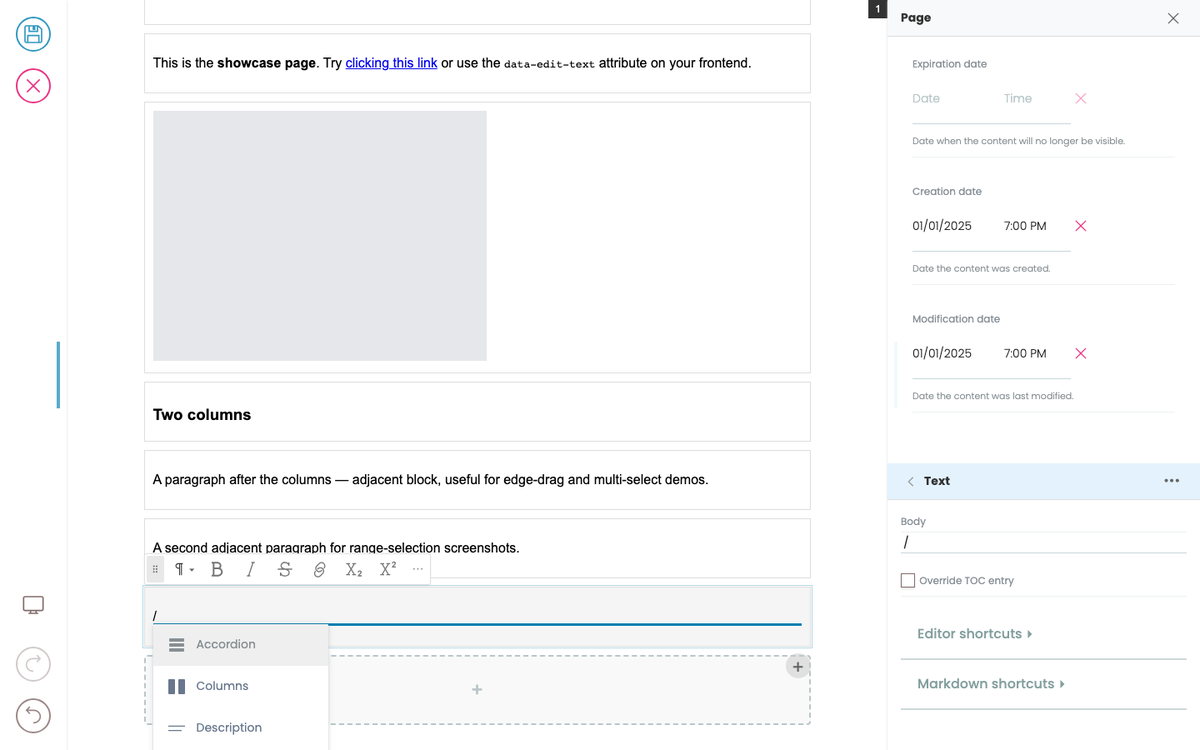
The slash menu changes the block's @type. If you wanted to add a new block, see Adding and moving blocks instead.
Splitting and joining paragraphs
Inside a slate paragraph block:
Entersplits at the cursor — the part after the cursor becomes a new block of the same type.Backspaceat the start of a block joins it with the previous block (text merges, cursor lands at the join point).
These work the same in headings and lists.
Saving
There's no "save" inside a field — every keystroke is reflected in the page state, and changes are saved when you click the toolbar's Save button. Until you save, the green-dot/save indicator shows there are unsaved changes.
Things you can't do (yet)
- Pasting rich HTML doesn't currently preserve all formatting — pasted text comes in as plain.
- A few markdown shortcuts (
####for h4 etc.) aren't wired up; the supported set is the table above. - Text-region "make this part read-only" markup isn't yet exposed to editors — frontend developers can mark whole blocks as readonly (see Templates and layouts).