Links and media
The link picker, image picker, and upload dialog are part of Hydra's chrome — they look the same on every site. What varies by design system is which links and images are click-to-edit in the preview: a site might wire up every link inline, or only a few "primary" links, with everything else editable from the sidebar. Same applies to images.
Editing a link
When the frontend has wired up a link field as inline-editable, clicking the link in the preview doesn't navigate — it opens the link picker instead. From the picker you can:
- Pick a CMS page by browsing the content tree.
- Type/paste an external URL.
- Open the URL in a new tab (toggle the "Open in new tab" option).
- Clear the link.
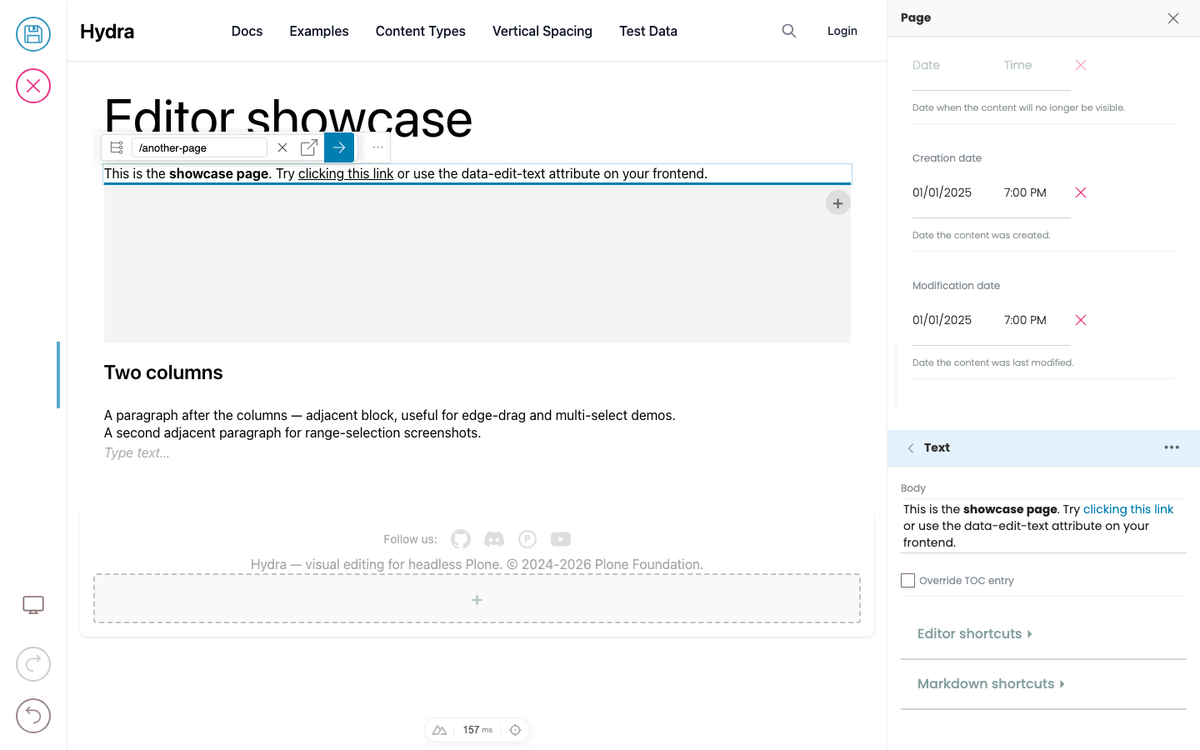
The Quanta toolbar's link icon does the same thing and is available on slate text fields too — select some text, click the link icon, and the link picker opens for that text range.
Uploading media
When the frontend marks an image (or other media element) as inline-editable, you can:
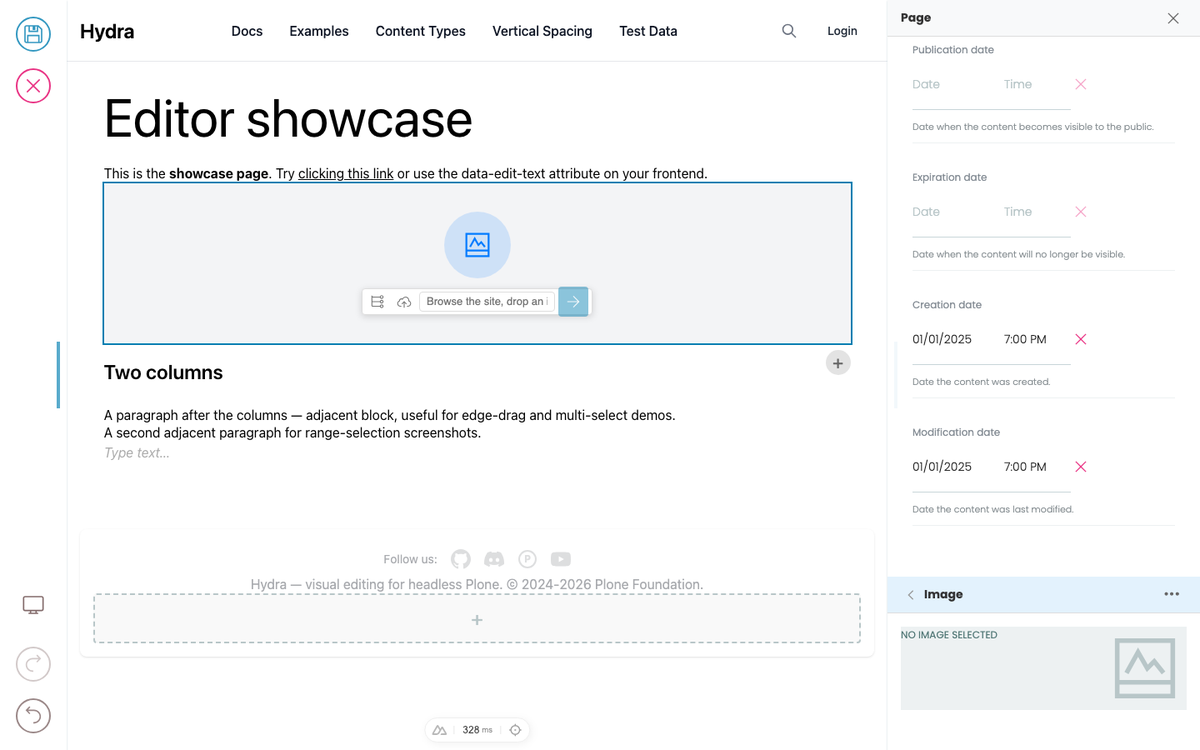
Empty media element
You'll see an empty placeholder with a prompt to upload, browse, or drag in an image. Three ways:
- Click the placeholder → the media picker opens. Pick from existing CMS images or upload a new one.
- Drag an image file from your desktop and drop it directly onto the placeholder.
- Drag an image from another tab / source if your browser supports it.
Replacing an existing media element
Hover the image — controls appear. You can:
- Replace — opens the media picker to pick or upload a different image.
- Remove — clears the field, returns to the empty placeholder state.
- Drag and drop a new image directly onto the existing one to replace it.
The same actions are available from the sidebar field if you'd rather not click into the preview.
What gets stored
When you pick or upload an image, what gets stored on the block isn't a URL string — it's a small object containing the image's CMS path, the field name, and the available scales. The frontend resolves a specific scale at render time (so the same image data renders at thumbnail size in a listing and full size in a hero). You don't have to think about scales as an editor; they're a developer concern.
What's not (yet) inline-editable
A few media types currently still require sidebar editing:
- File uploads (PDFs, downloads) — pickable from the sidebar but no drag-onto-preview support yet.
- Embedded video URLs — sidebar field; click-to-edit on the player isn't wired up.
If your frontend doesn't expose a particular media field as inline-editable, you can always edit it from the sidebar — that's available for every field.