Templates and layouts
A template is a piece of pre-built page structure that someone (often a developer or site admin) has saved separately. When you apply a template to a page, the page gets the template's structure overlaid: some blocks are fixed and can't be edited, some can be edited but not moved, and some are open slots where you fill in your own blocks.
Templates let editors reuse a layout consistently across many pages without copy-pasting structure each time. Two flavours:
- Block-level templates — a snippet you insert as a block (e.g. a "feature row" snippet you drop into the middle of a page). Configured per field as
allowedTemplates; appears in the BlockChooser's Templates group. - Page-level layouts — a full layout the whole page (or a region) is rendered through (e.g. an "article layout" with a fixed header / sidebar / footer). Configured as
allowedLayouts; appears in the Layout dropdown.
The two share the same merge rules; the difference is just where they're applied.
What you'll see in the editor
When a template is applied to a page, blocks fall into three categories:
🔒 Locked (fixed + read-only)
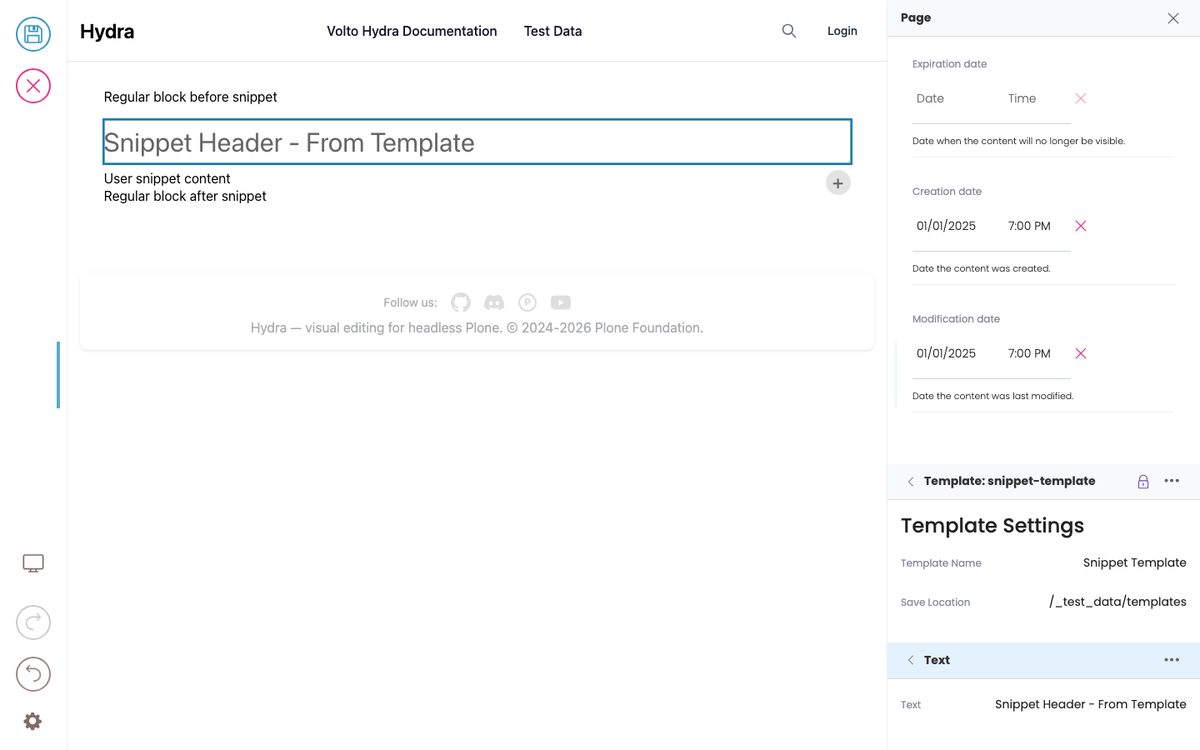
Shown with a lock icon — a 🔒 in the Quanta toolbar (in place of the drag handle) and on the template's sidebar bar. You can't:
- Edit the text/media inside it.
- Move it.
- Delete it.
Selecting a locked block still shows its content in the sidebar — as read-only values, not editable fields — so you can see what's there without being able to change it.
Typical use: branded headers, footers, legal disclaimers — content the template author wants identical across every page.
Fixed (editable, not movable)
Shown without a lock but without a drag handle. You can:
- Edit text, media, links inside it.
- Change its block-level settings.
You cannot:
- Move it to a different position.
- Delete it.
Typical use: a "callout" block in the middle of a layout — every page has one, but the content varies.
Slot (your content)
Regular blocks where you can do anything — add, edit, move, delete. The template marks regions as slots (with a slotId) and your existing content is placed into the matching slots when the template merges.
Inserting between fixed blocks
You can't insert a new block between two adjacent fixed/readonly template blocks — the "+" button is hidden in those positions and DnD is rejected. This is intentional: the template author put those fixed blocks side-by-side on purpose, and the editor inserting between them would break the layout's intent.
If you need to add content there, you may need to switch to a different layout (one whose structure has a slot in that position) or talk to whoever maintains the templates.
Switching the layout
When allowedLayouts is configured for a page (or a region), the sidebar shows a Layout dropdown. Pick a different layout and:
- The new layout's structure replaces the old one.
- Your existing content is redistributed into the new layout's slots based on
slotId:
- Content tagged with a slot name is placed into the matching slot in the new layout. - Content with no slot tag falls into the "default" slot if the new layout has one; otherwise into the bottom or top slot, or is dropped. - Fixed blocks with the same slotId get their editable content carried over (text, media); their structural settings come from the new layout.
The point of slotId is that two layouts can share the same set of region names — switch between them and your content lands in the right places automatically.
Editing content inside a template
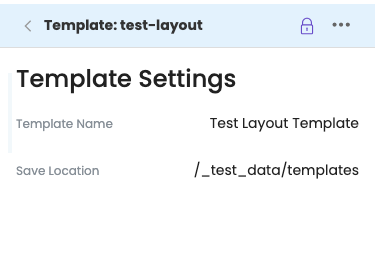
A template's own (fixed) blocks are locked by default — you can edit this page's content, but not the template. To change the template itself, unlock it: select one of its blocks and click the 🔒 on its sidebar bar ("Template: name"), on the block's Quanta toolbar, or Edit template in the bar's ⋯ menu. The 🔒 becomes 🔓, and the template's blocks — plus its Name / Save Location — become editable.
Unlocking one template unlocks only that template. The rest of the page stays editable as normal, and you can unlock several templates at once and edit them together.
Locking is where your template edits commit. When you lock a template you choose:
- Change on all pages — save your edits to the template; every page using it picks them up.
- Reset changes — discard the edits and revert the template to its saved version. Only the template reverts; any page content you edited while it was unlocked stays.
- Cancel — keep editing (stay unlocked).
Templates are saved when you lock them, not when you save the page. If you save the page while a template is still unlocked, you're prompted to lock it first.
Template instances in the sidebar
When a template is applied, the template's blocks are grouped under a single virtual entry in the sidebar block list — you'll see "Template: Article Layout" rather than each fixed/readonly block as a separate row. Expand it to see the structure inside.
Inserting a template as a block
When allowedTemplates is configured on a field, the BlockChooser's Templates group shows the list. Pick one and the template's content is inserted at the current position as a block (just like adding any other block). Editor-side this is the simpler case — once inserted, the template's blocks behave the same as if a layout had placed them (lock icons, fixed-but-editable, slots).